

Firm settings
Firm settings is the default landing page of Settings and is visible to all members. Admins can update the firm's display name and description. All members can view the tab and switch between workspaces they belong to.
Firm name
The Firm name field holds the display name for your workspace as it appears throughout the app. The placeholder example shown is "e.g. Chen & Torres CPA". The name must be non-empty before the Save details button becomes active.
About
The About field is a four-row textarea for a short description of your practice - branding context or a brief summary of the firm's focus. Example placeholder: "We're a CPA firm specialising in small business tax returns and bookkeeping in New York." The field is optional; leaving it blank has no effect on other functionality.
Saving changes
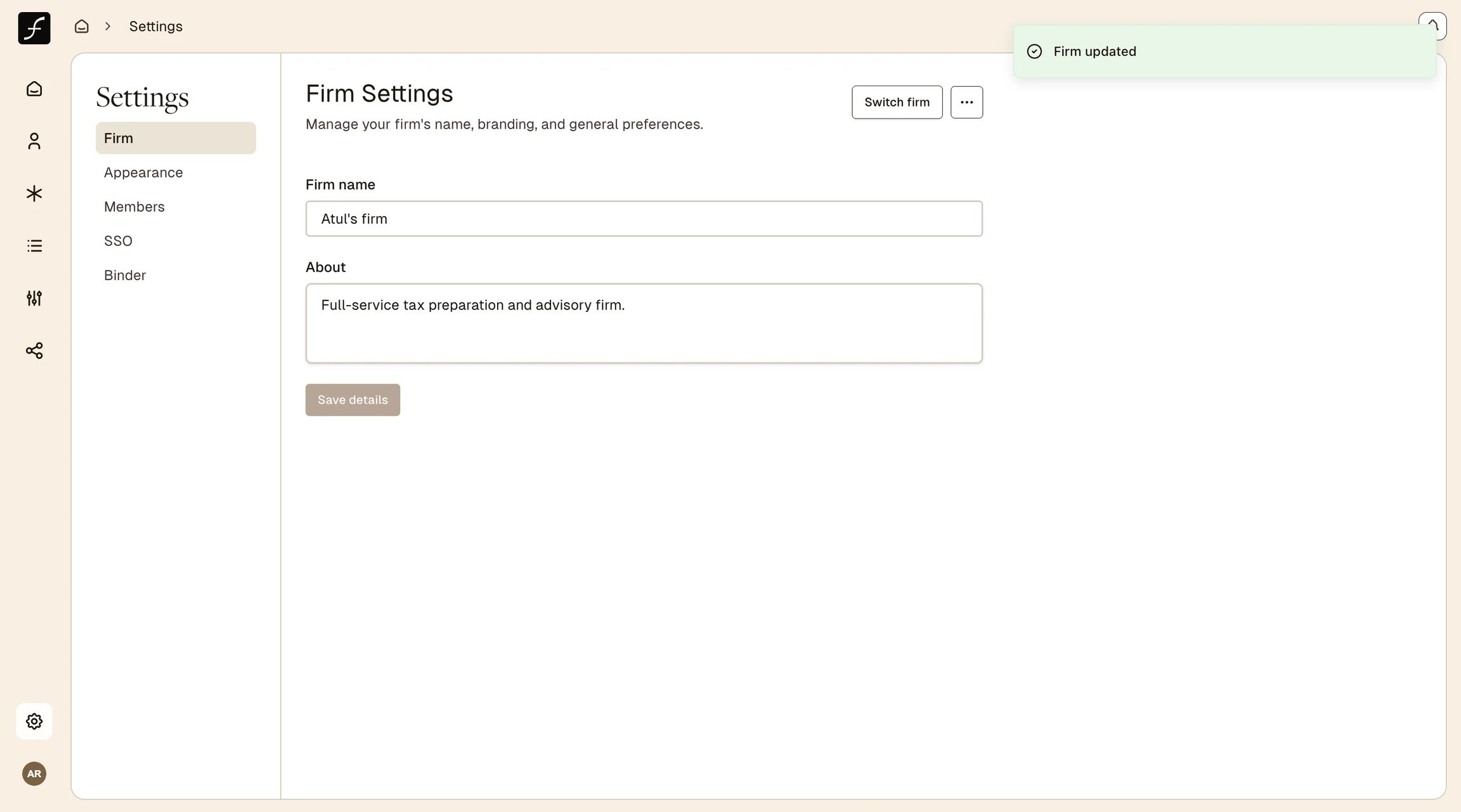
Admins click Save details to persist any edits to the firm name or About description. The button is disabled when there are no unsaved changes or when the name field is empty. A success toast confirms the update; a failure toast prompts you to try again.
Switching firms
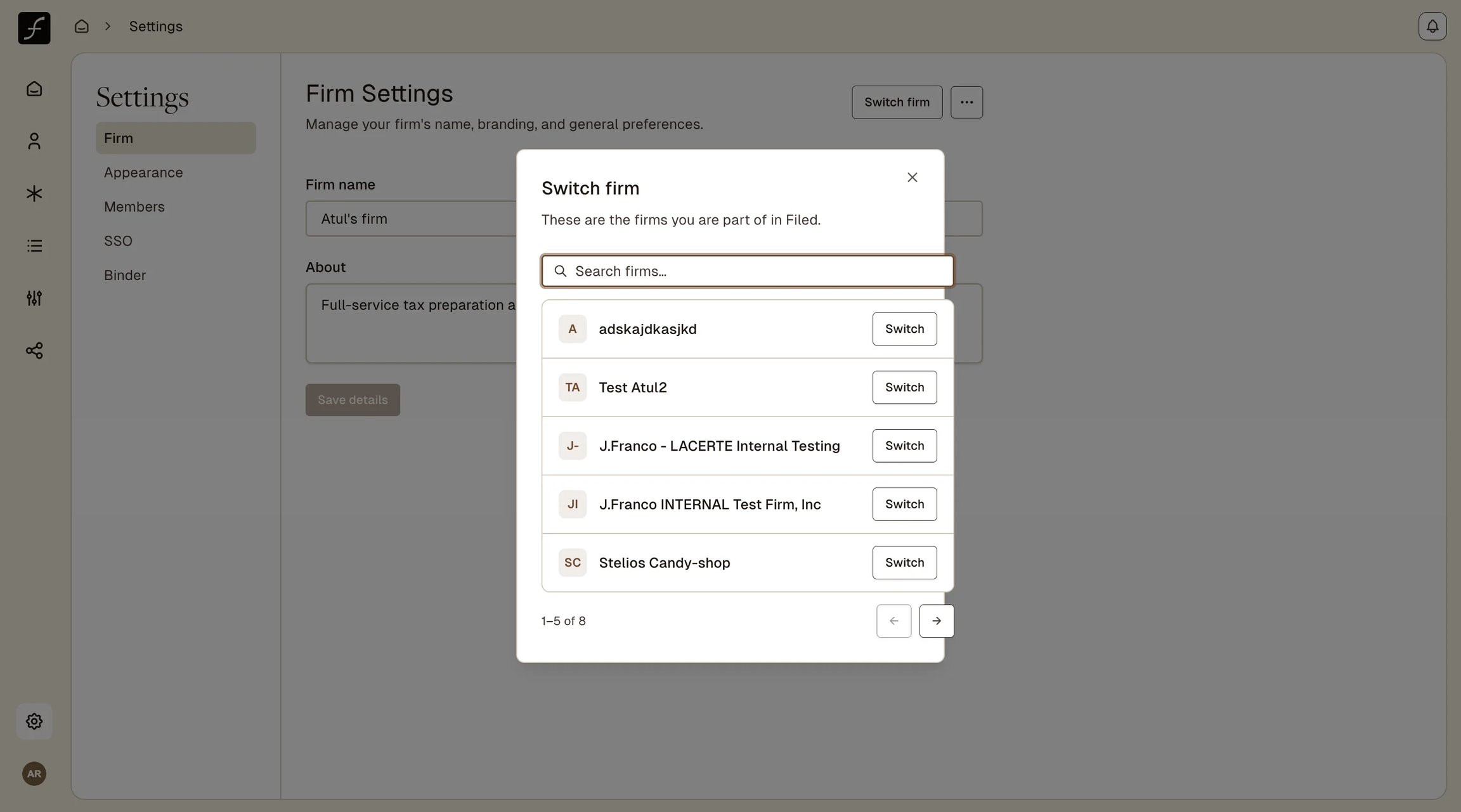
If your account belongs to more than one workspace, a Switch firm button appears in the top-right area of the Firm Settings page. Clicking it opens a searchable dialog listing the other workspaces you are part of, paginated at five per page. Select a workspace and click Switch to move into it; the app navigates to that workspace's home page.
Creating a new firm
A Create a firm option is available from the three-dot menu next to the Switch firm button. It navigates to the firm onboarding flow at /onboarding/firm. Use this when your practice needs a separate workspace, for example a distinct legal entity or office. If you only need to add people to an existing workspace, use Members instead.
Walkthrough: update firm details
On the Firm tab, edit the Firm name and/or About fields. The Save details button activates once there is an unsaved change (and the name is not empty).
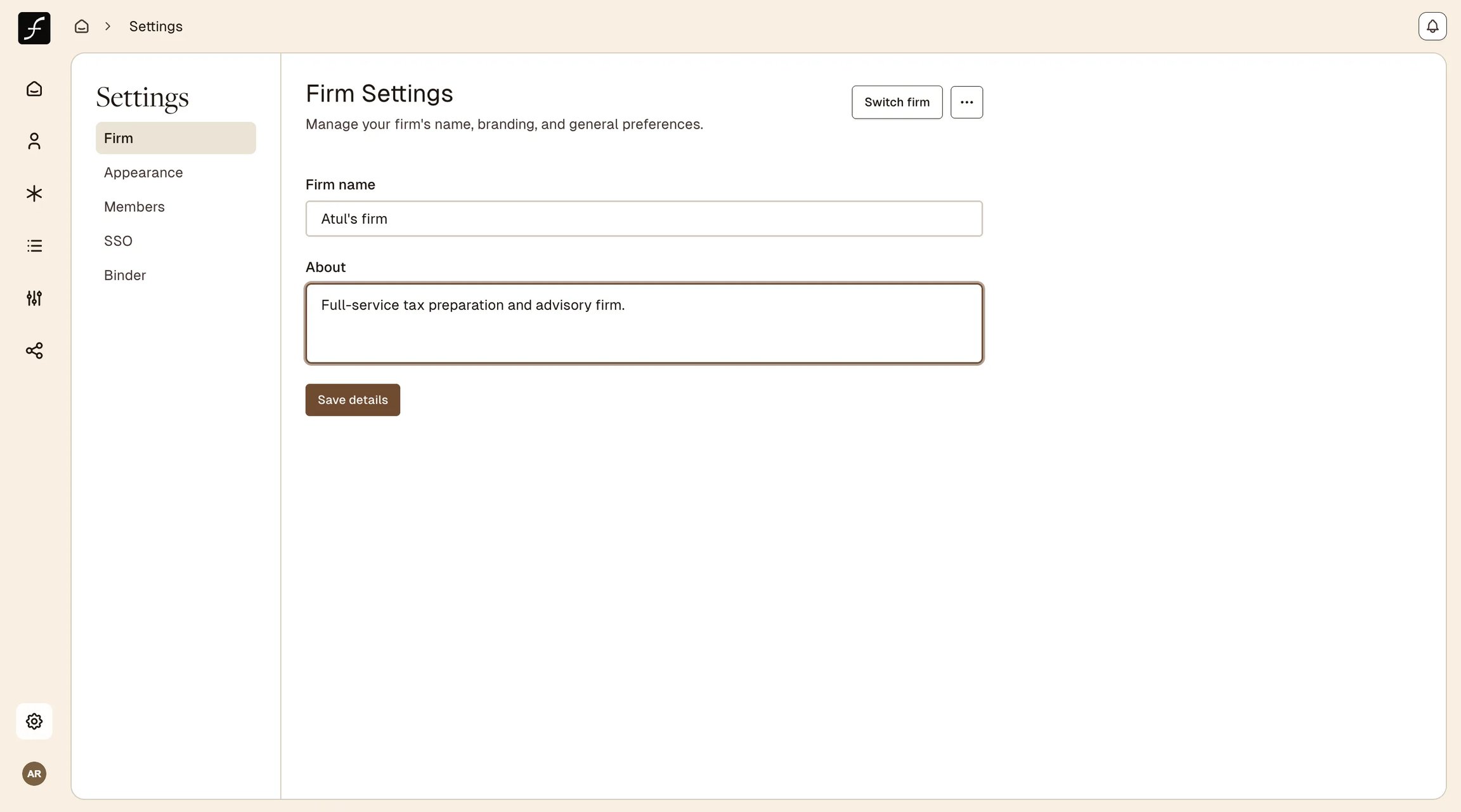
Click Save details. A success toast ("Firm updated") confirms the change and the button returns to its disabled state.
Walkthrough: switch firms
If your account belongs to more than one workspace, click Switch firm in the top-right. A searchable dialog lists the other firms you are part of (five per page). Use the search box to find a firm, then click Switch to move into it.
Last updated
Was this helpful?