

Binder
What is the Binder?
The Binder is the per-client document workspace in Filed where all review work happens. It is shared across products: both AI Tax Prep and AI Review read from and write into the same Binder for a given client, so every team member works from a single source of truth.
When files are uploaded for a client, Filed AI automatically splits and classifies each file into individual subdocuments before they appear in the Binder. A single uploaded PDF can produce several Binder entries, one for each detected form or document type. The team works from these classified subdocuments, not from raw files.
The Binder belongs to the client, not to any single workflow. Whether you are preparing a return, reviewing it, or both, the Binder is where source documents, annotations, extracted values, workpapers, and sign-offs all live together.
How the Binder is organized
The Binder uses a three-panel layout:
Left panel - the document list and navigation tree.
Center panel - the open document and the annotation toolbar.
Right panel - three tabs: Notes & flags, the AI Chat assistant, and Shortcuts.
Three tabs across the top of the Binder control which workspace is active: Docs, Forms, and Leads. Forms holds AI Tax Prep output and Leads holds AI Review leadsheets; each is populated once the corresponding product has run.
Docs tab
The Docs tab is the primary document review workspace. Subdocuments are grouped into named categories in the left panel, and clicking any subdocument opens it in the center viewer with the full annotation toolbar available. Two status signals appear at the top of the document list: the missing-documents checklist and Filed AI observations. See Organizing Documents for category management and Annotating and Reviewing for annotation tools.
Forms tab
The Forms tab displays the tax forms and screens that Filed AI extracted from the client's uploaded documents. It is populated after AI Tax Prep runs for this client; before then it is empty. See Forms for details.
Leads tab
The Leads tab contains the AI Review workpapers (leadsheets). It supports two views: a spreadsheet-style row view and an issue card view. It is populated after AI Review runs for this client. See Leadsheets for details.
What the Binder shows you
The fundamental unit in the Binder is the subdocument. When Filed AI processes an uploaded file, it detects each individual form or item within that file and creates a separate subdocument for each one. Each subdocument has a type (for example, W-2 or 1099-INT), an issuer, and a tax year, and it is automatically placed in the appropriate category.
This means the document list in the Binder reflects the logical structure of the client's tax situation, not the physical structure of the files that were uploaded. A single uploaded PDF from a brokerage may produce multiple subdocuments for different 1099 form types, each sitting in its correct category.
Missing documents and observations
Two status signals in the Docs tab help the team identify what still needs attention.
The missing-documents checklist compares uploaded documents against the prior year return and lists document types that Filed AI expects for this return but that have not yet appeared in the Binder. The sidebar row shows an amber count badge when items are open and a green checkmark when all are accounted for. Each missing item shows the form type, issuer, and an AI-generated explanation of why it is expected. Items can be dismissed individually if they are not applicable.
Filed AI observations are flags and notes surfaced during document processing. They appear both in a dedicated center panel and as anchored marks on the pages they came from. Observations are distinct from human-placed annotations: they are AI-generated and are labeled as either flags or notes. An observation can be dismissed once reviewed, and it can also be the starting point for adding a human flag to the document.
Downloading the Binder
The Binder download dialog offers up to five options:
PDF workpaper - documents in Binder order with annotations embedded; Output items excluded automatically.
Checklist of missing items - when any exist.
Forms Excel workpaper - for business returns when AI Tax Prep is enabled.
Source documents - the original uploaded files.
Leadsheets as Excel or CSV - when AI Review is enabled.
Walkthrough: download the Binder
In the Docs panel, open the ⋯ (More options) menu and choose Download workpaper to open the Download dialog. Check the items to include in the export: PDF workpaper, Checklist (missing items, if any), Source documents (uploaded files), and Leadsheets (with an Excel or CSV format selector). Options that don't apply to the client are hidden.
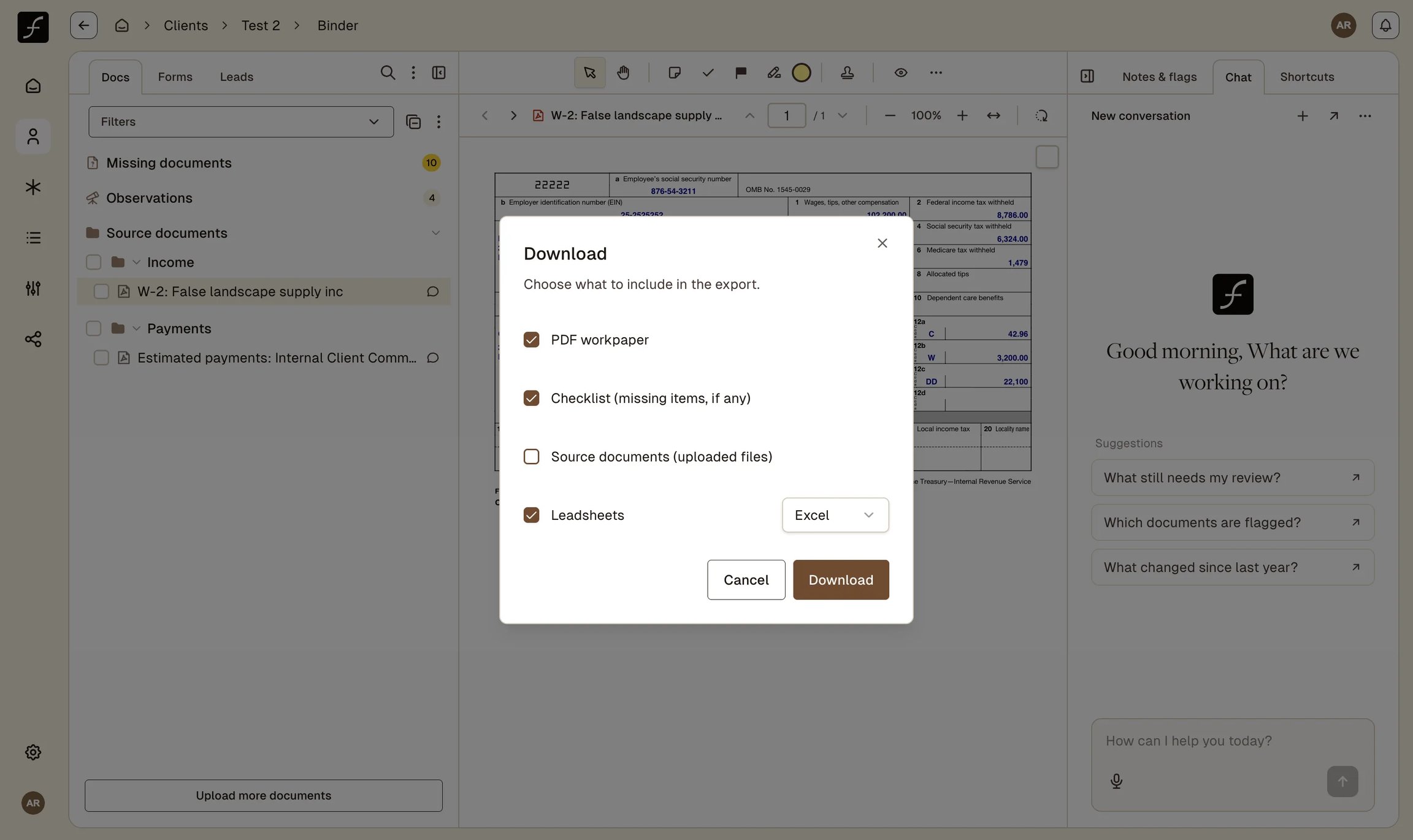
Leave PDF workpaper checked and click Download. The PDF is generated in Binder order with annotations embedded; Output documents are automatically excluded from the PDF.
In this section
Organizing Documents - categorize, reorder, and manage subdocuments
Missing Documents Tracking - how Filed uses the prior-year return to know what's outstanding
Marking Document Dispositions - recording why a missing item was dismissed (final K-1, extension, N/A)
Annotating and Reviewing - notes, tickmarks, flags, highlights, cross-references, stamps, and the calculator
Observations: Dismissing and Restoring - working through AI-surfaced observations
Forms - view and edit extracted tax-prep form values
Leadsheets - review AI Review workpapers by row or by issue
Template Automation - completing a firm's own templates automatically
Binder Chat - ask the AI assistant questions about the client's documents
Activity and Sign-off - the Notes & flags feed, threads, @mentions, and multi-level sign-off
Changelog
We ship new features and improvements to Filed every week. The changelog collects them in one place, newest first. Check back regularly to see what’s new. View the changelog (sign in with your Filed account).
Last updated
Was this helpful?