

Yours vs. firm's protocols
Two tiers, one Playbook
Every Playbook tab shows the same two sections: "Yours" at the top and "Firm's" below. Both are visible to every preparer, so you can see what the firm expects and avoid writing personal protocols that duplicate what is already enforced at the firm level. Both contribute to what runs when the assistant processes a task; the difference is who the protocols apply to and who controls them.
Your protocols ("Yours")
Personal protocols are created by you, visible only to you, and run only during your own task sessions. Admins cannot see or edit your personal protocols. They represent your individual working preferences, rules you apply to specific client types, or guidance you are testing before suggesting it for the whole firm.
Chat can only create personal protocols. There is no path in Chat to author a firm protocol directly.
Who can create and edit them
Any preparer can create personal protocols through Chat. Only the preparer who owns a personal protocol can edit or delete it. No approval workflow is required. A new personal protocol becomes active immediately when you approve the Chat proposal.
When they apply
Your personal protocols are loaded alongside firm protocols whenever you run a task. If you have a personal protocol with the same name as a firm protocol under the same task type, your personal version takes precedence: the firm version is skipped for your run only, and other preparers continue to see the firm version.
If your personal protocol and the firm protocol with the same name have identical bodies, the system automatically de-duplicates them and uses only the firm copy. This avoids injecting the same instruction twice without any behavior change.
Firm's protocols ("Firm's")
Firm protocols run for every preparer at the firm during the relevant task type. They appear in the "Firm's" section of every preparer's Playbook view. There are two kinds of firm protocols: curated (built-in) protocols and firm-authored protocols.
Built-in (curated) protocols
Filed ships a set of curated protocols for the AI Review and AI Tax Planning task types. They are organized by return type (1040, 1120S, 1065, 1041, 990, and so on), so each return type has domain-specific review rules or planning strategies bundled in. Curated protocols are active by default for all preparers.
Admins can disable a curated protocol or replace it with a firm-authored version that overrides the default. If a firm-authored override is later removed, the curated default automatically becomes active again. Preparers cannot edit curated protocols.
Firm-authored protocols
Firm-authored protocols are promoted from a preparer's personal Yours list by an admin. Once promoted, the firm copy is independent: edits the original preparer makes to their personal version do not automatically update the firm copy. Only admins can edit or remove firm-authored protocols.
Promoting a personal protocol to the firm
A preparer with a personal protocol they want the whole firm to use can request promotion. The action is labeled "Share with firm" in the protocol's actions menu.
Walkthrough: share a protocol with the firm
In the Yours section, select a personal protocol's checkbox and click Share with firm.
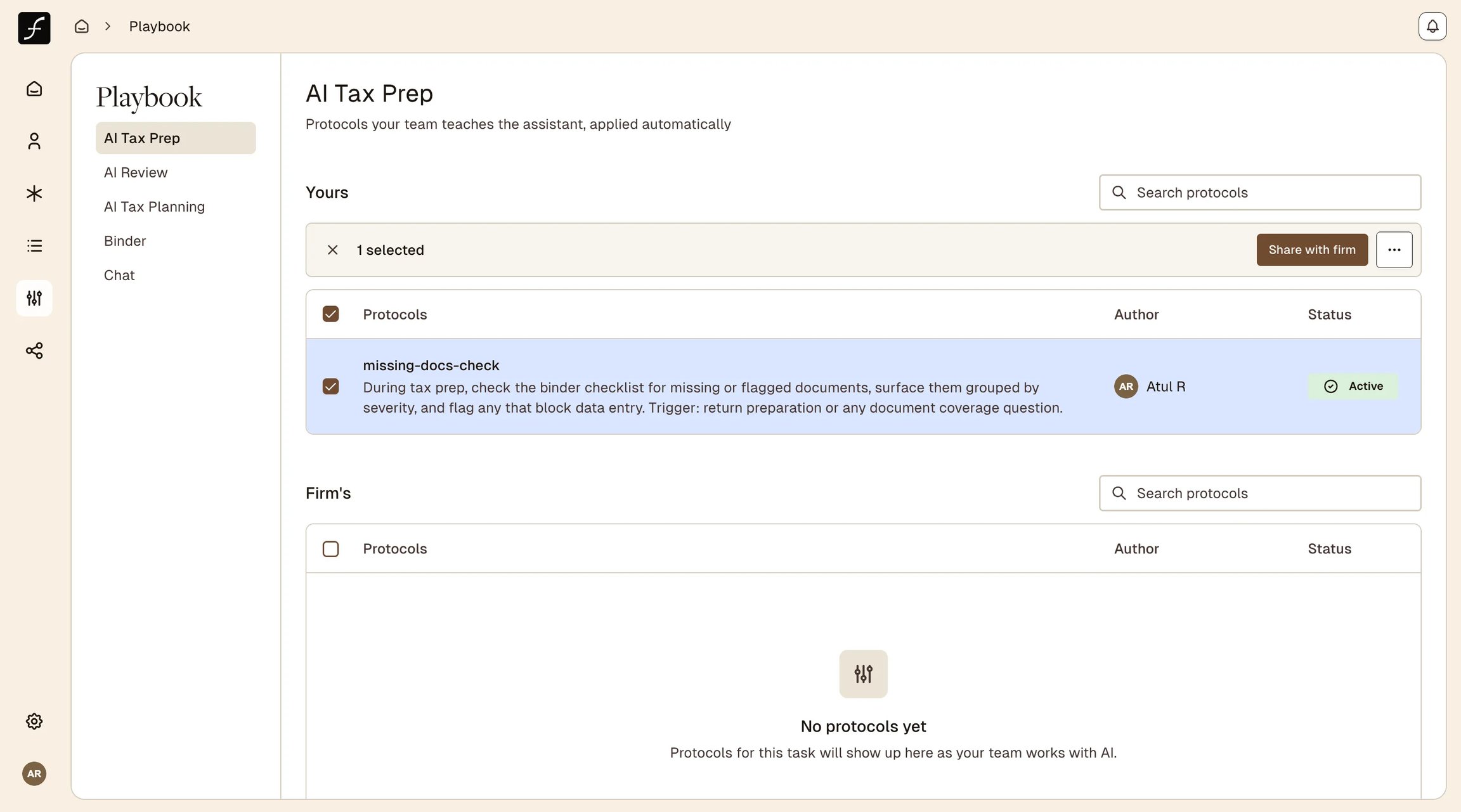
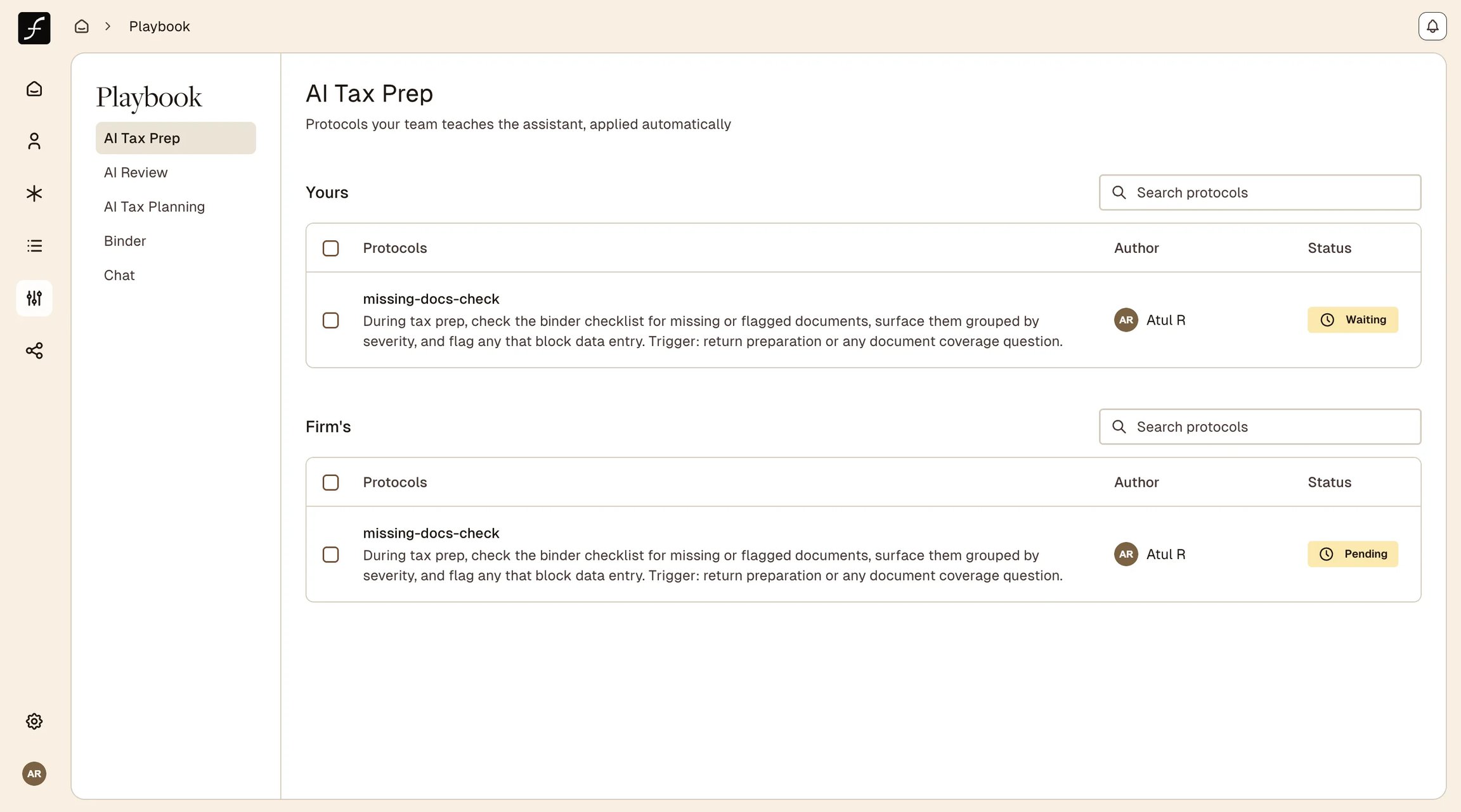
The protocol's badge in Yours changes to Waiting, and a copy appears in the Firm's section with a Pending badge awaiting admin review.
What admins see during review
When a preparer requests promotion, the protocol appears in the Firm's section with a Pending status badge. Admins can open the protocol's detail page to read the full description and body, see who submitted the request, and review the activity timeline. The admin then chooses to approve or deny.
Approval
Walkthrough: approve a pending protocol (admin)
As an admin, select the pending protocol's checkbox in the Firm's section. An action bar appears with Approve and Deny.
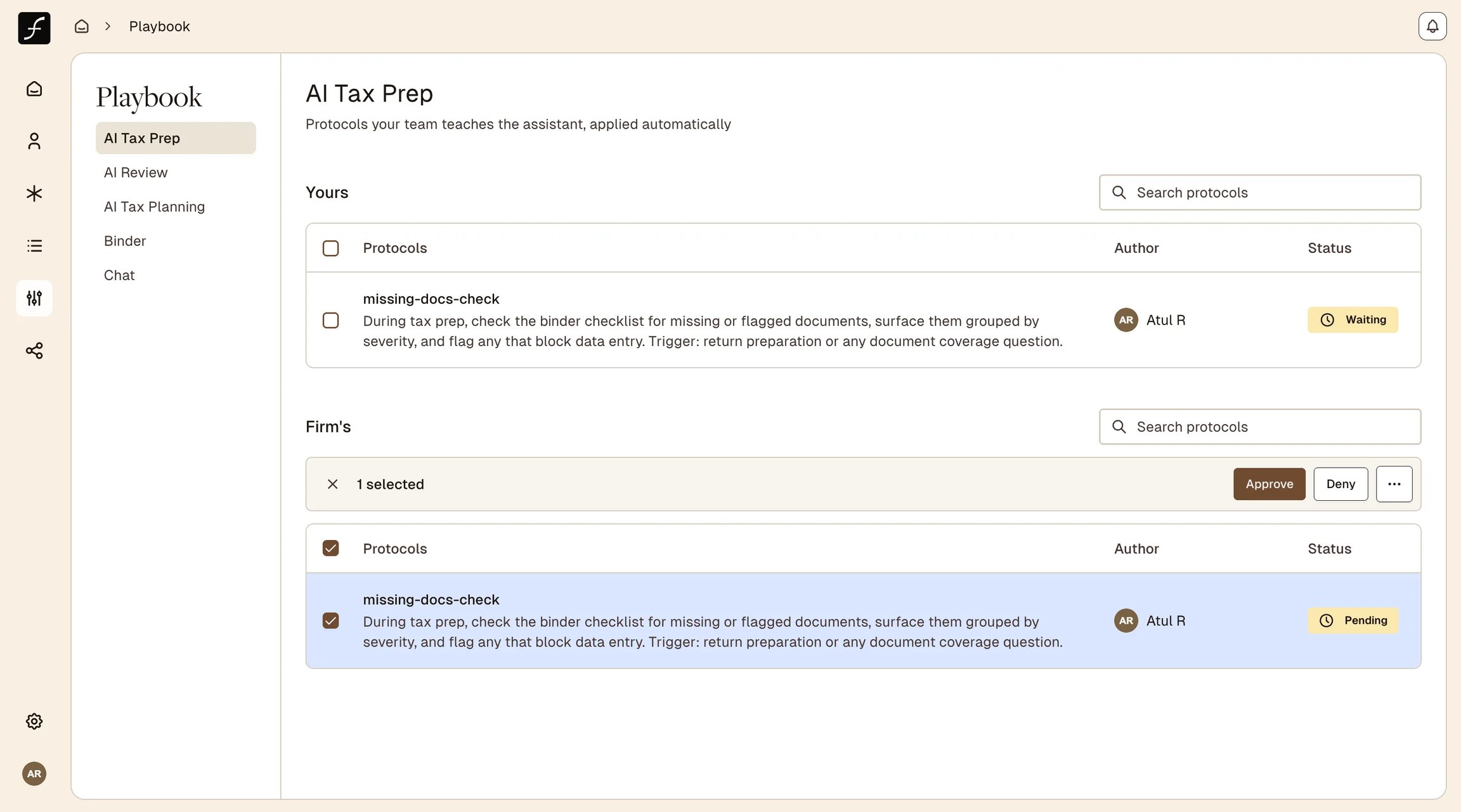
Click Approve. The protocol becomes Active in the Firm's section, and the original author's personal copy in Yours updates to a Shared badge.
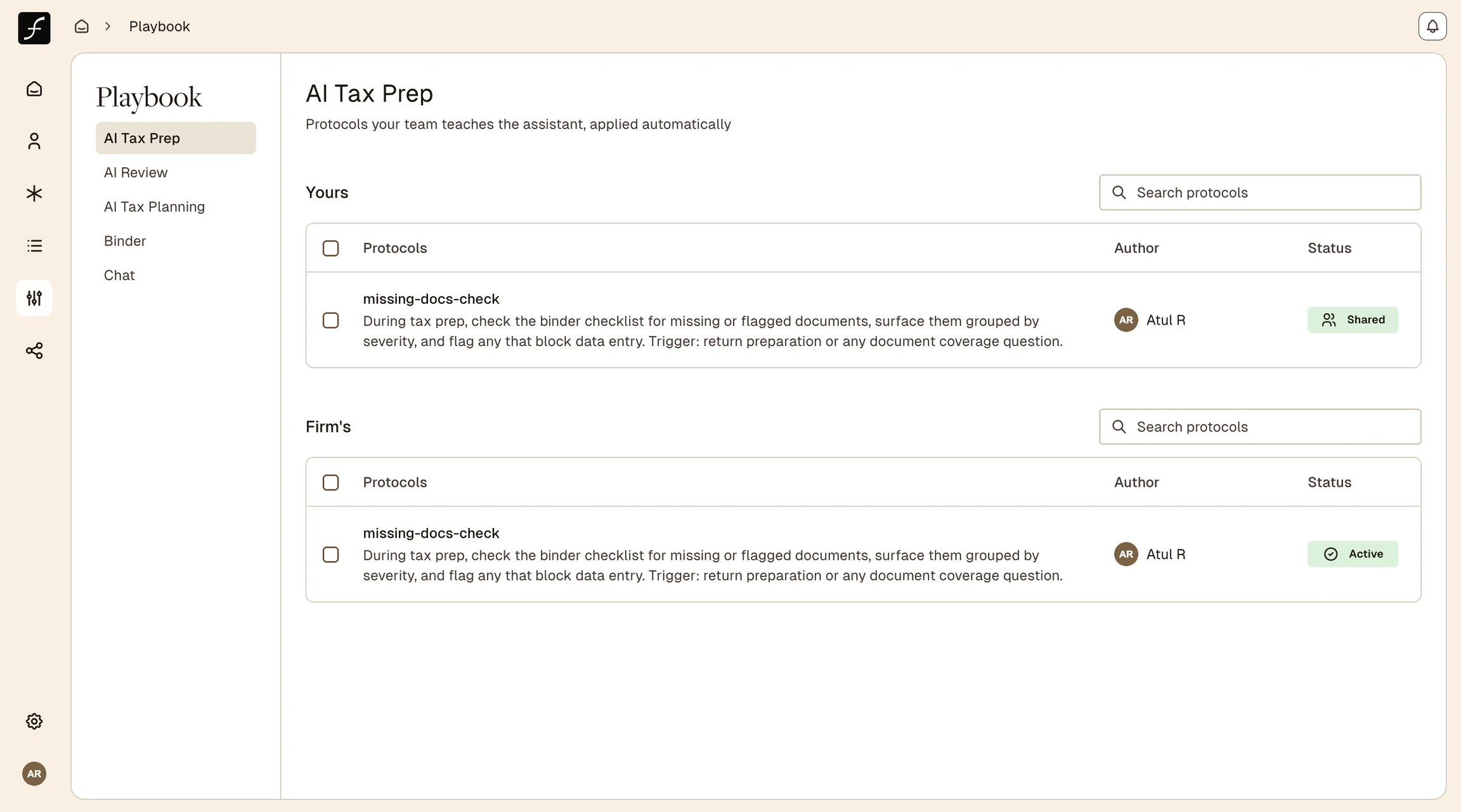
On approval, the protocol is copied to firm scope and becomes immediately active for all preparers at the firm. The original preparer's personal copy remains in their Yours list with its status updated to "Shared." From that point on, the firm copy is what runs, both for the original preparer and for everyone else. The personal copy is still present: if the original preparer later edits their local version to differ from the firm copy, their personal version takes precedence for their own runs.
Denial
Walkthrough: deny a pending protocol (admin)
As an admin, select the pending protocol in the Firm's section and click Deny (an optional deny reason may be requested).
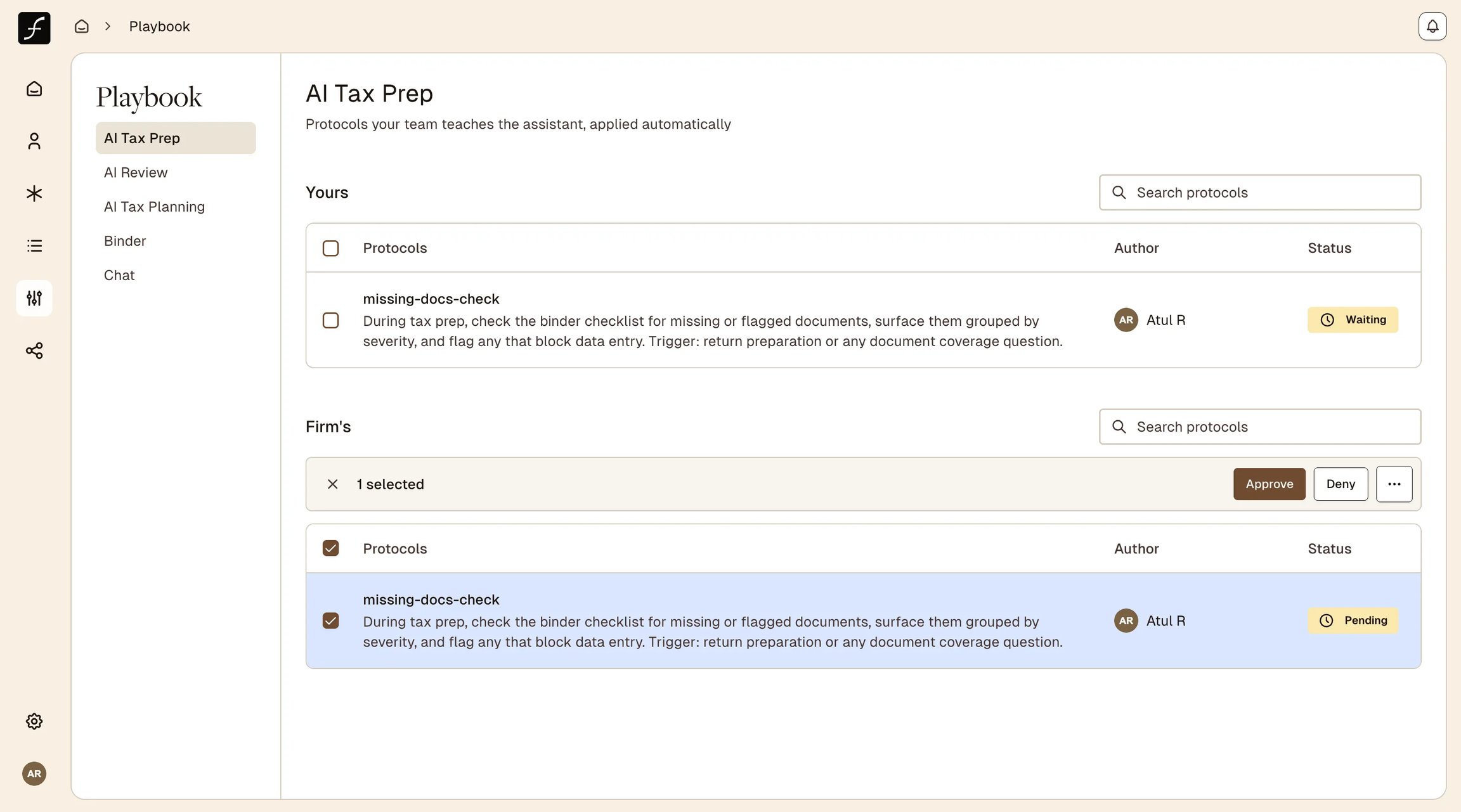
The protocol is removed from the Firm's pending list, and the author's personal copy stays in Yours with a Denied badge. The preparer can revise and resubmit; any deny reason appears on the protocol's detail.
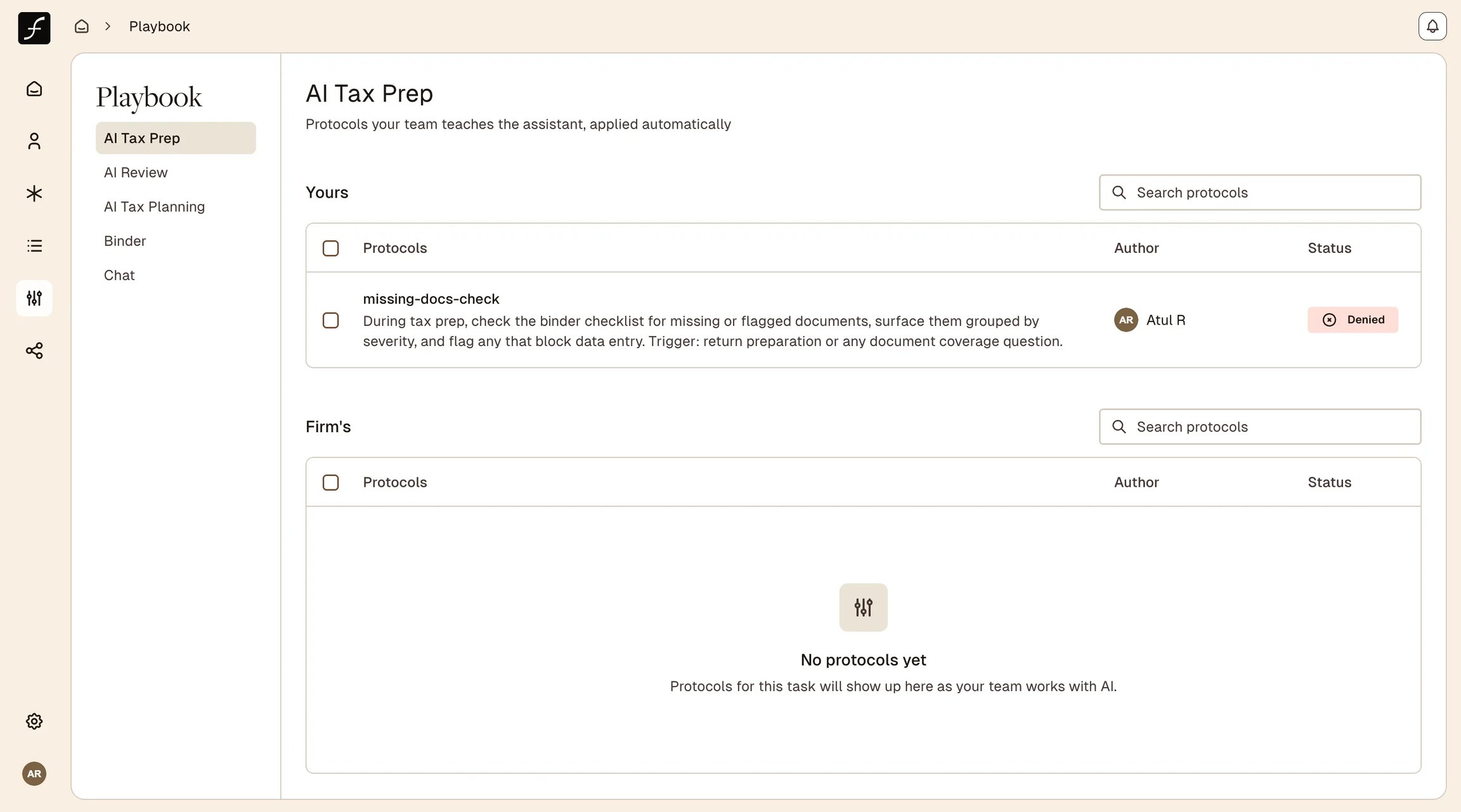
On denial, the protocol is not promoted. The preparer's personal copy remains in Yours and continues running for them. The deny reason, if the admin provided one, appears on the protocol's detail page. The preparer can revise the protocol and resubmit.
Precedence: what runs when both exist
The rule: if you have a personal protocol and a firm protocol with the same name under the same task type, your personal version wins for your runs, and the firm version is not injected during your sessions. This lets individual preparers override firm defaults when they have a specific reason to.
If the bodies of the personal and firm versions are byte-for-byte identical, the system de-duplicates them and uses only the firm copy. This prevents the same instruction from appearing twice in the assistant's context, which would waste token budget without any change in behavior.
Protocol status reference
Active
Yours and Firm's
Running normally. No badge shown; the default state.
Disabled
Firm's
Exists in the list but skipped at run time. Admins can re-enable it.
Waiting
Yours
You have requested promotion to the firm. Awaiting admin decision.
Shared
Yours
Your protocol was approved and promoted. The firm copy is now active for all preparers.
Denied
Yours
Promotion was rejected. Your personal copy is still active for your runs. The deny reason (if provided) is visible on the detail page.
Pending
Firm's
An admin sees this badge on a protocol awaiting their approval or denial.
Personal protocols that are not in any promotion workflow show no status badge; they are simply active.
Admin governance
Admins have full control over the Firm's section for their workspace.
Disabling a firm protocol suspends it without removing it. The protocol remains in the Firm's list with a Disabled badge and can be re-enabled at any time. This applies to both curated and firm-authored protocols.
Walkthrough:
Open Playbook from the left sidebar and select the AI Review task type.
In the Firm's section, select the protocol's checkbox and choose the disable action. The protocol remains listed with a Disabled badge and is skipped on future runs; existing leadsheets from prior runs are not retroactively changed.
Removing a firm-authored protocol permanently deletes it from firm scope. Preparers who had that protocol in their Yours list as Shared will see their personal copy revert to its previous status. This action cannot be undone.
Removing a firm override of a curated protocol reverts that position to the bundled curated default. The curated default becomes active again immediately.
Approving or denying a promotion request requires admin role. Only one promotion request for a given protocol name can be pending at a time. If a preparer tries to share a protocol that already has a pending request from another preparer under the same name, the system rejects the second request until the first is decided.
The activity timeline on any protocol's detail page records its full history: creation, every promotion request, approval or denial decisions, enables and disables, and the actor and timestamp for each event. This gives admins a complete audit trail for firm-scope protocol changes.
Last updated
Was this helpful?