

The client hub
The client hub is the per-client workspace where all AI-powered tax work happens. It opens when you click any client in the list.
What is the client hub?
The hub is a single page scoped to one client and tax year. It shows a header with key client details and a grid of product cards, each launching a specific AI tool. If a client's documents have never been processed, the hub shows an initial upload view instead of the card grid, prompting you to upload documents first.
Reading the client header
The header identifies the client at a glance. It displays:
Client name, with a pencil icon to edit it inline.
Return type and tax year: for example, "Personal . 1040 . 2025". Return type is set at creation and cannot be changed.
Status label: shows "Active" once documents have been processed, "Processing" while the binder is being created, "Failed" if binder creation encountered an error, or "Archived" in red if the client has been archived.
On mobile, the header also contains a Files button that opens the full-screen Files panel.
The product cards
The card grid is the launchpad for all AI tools on this client. Each card shows a tool name, a short description, and a live badge reflecting the current task state. Cards are always visible, but some require processed documents or a firm-level feature flag before they become active.
Binder
"View the organized binder." The Binder organizes all uploaded documents into a structured view. It is always shown regardless of feature flags, but becomes interactive only once documents are processed.
Badge states for the Binder card:
Processing
Documents are currently being added to the binder
Missing + Observations
When binder creation completes, the card always shows both a missing badge and an observations badge together: the missing badge is red "N Missing" when N is greater than 0, or green "0 Missing" when none are missing, alongside a grey "N Observations" badge. Click the missing badge to filter the binder to missing documents.
Failed
The binder creation workflow encountered an unrecoverable error.
Chat
"Ask any question about this client." Chat lets you ask natural-language questions about the client's documents and data. It becomes active once documents are fully processed (client status Active). Until then, the card shows the tooltip "Available once documents are processed."
AI Tax Prep
"Automate form extraction and data entry." AI Tax Prep extracts data from source documents and prepares it for entry into your tax software. This card requires the tax-prep feature flag to be enabled for your firm.
Badge states:
Processing
Tax prep is running
Ready for data entry
Extraction is complete; the return is ready for data entry
Done
Data entry preparation is complete
Failed
Tax prep encountered an error
AI Review
"Catch mistakes on your draft return." AI Review checks a draft return for errors and inconsistencies. This card requires the tax-review feature flag. Badge states are Processing, Done, and Failed.
AI Tax Planning
"Personalized tax strategies." AI Tax Planning generates planning recommendations based on the client's data. This card requires the tax-planning feature flag. Badge states are Processing, Done, and Failed.
Card states and what they mean
Two disabled reasons can appear on any card:
"Available once documents are processed": shown on Binder and Chat when the client's binder creation is not yet complete. The client must reach Active status before these tools are accessible.
"Disabled for your firm": shown on AI Tax Prep, AI Review, and AI Tax Planning when the corresponding feature flag is not enabled for your workspace. Contact your account representative to enable a feature.
Binder
Processing badge (spinner)
0 Missing + Observations
-
Failed or N Missing badge
"Available once documents are processed"
Chat
Not applicable
Active (clickable)
-
-
"Available once documents are processed"
AI Tax Prep
Processing badge
Ready for data entry
Done
Failed
"Disabled for your firm"
AI Review
Processing badge
-
Done
Failed
"Disabled for your firm"
AI Tax Planning
Processing badge
-
Done
Failed
"Disabled for your firm"
Client actions (⋯ menu)
The ⋯ menu in the client hub header provides three actions:
Edit client: opens a dialog to rename the client. Return type cannot be changed after creation.
Archive (or Unarchive if the client is already archived): moves the client off the active list while preserving all data. The confirmation dialog reads: "This client will be hidden from the active list. You can unarchive this client if needed." See Client Statuses for what archiving means.
Delete client: permanently deletes the client and all associated data. A confirmation dialog warns that this action cannot be undone. This option appears separated from the others and is displayed in red.
Walkthrough: the client actions menu
From inside a client hub, click the ⋯ button in the header to open the actions menu. It lists Edit client, Archive, and Delete client (Delete is separated and shown in red).
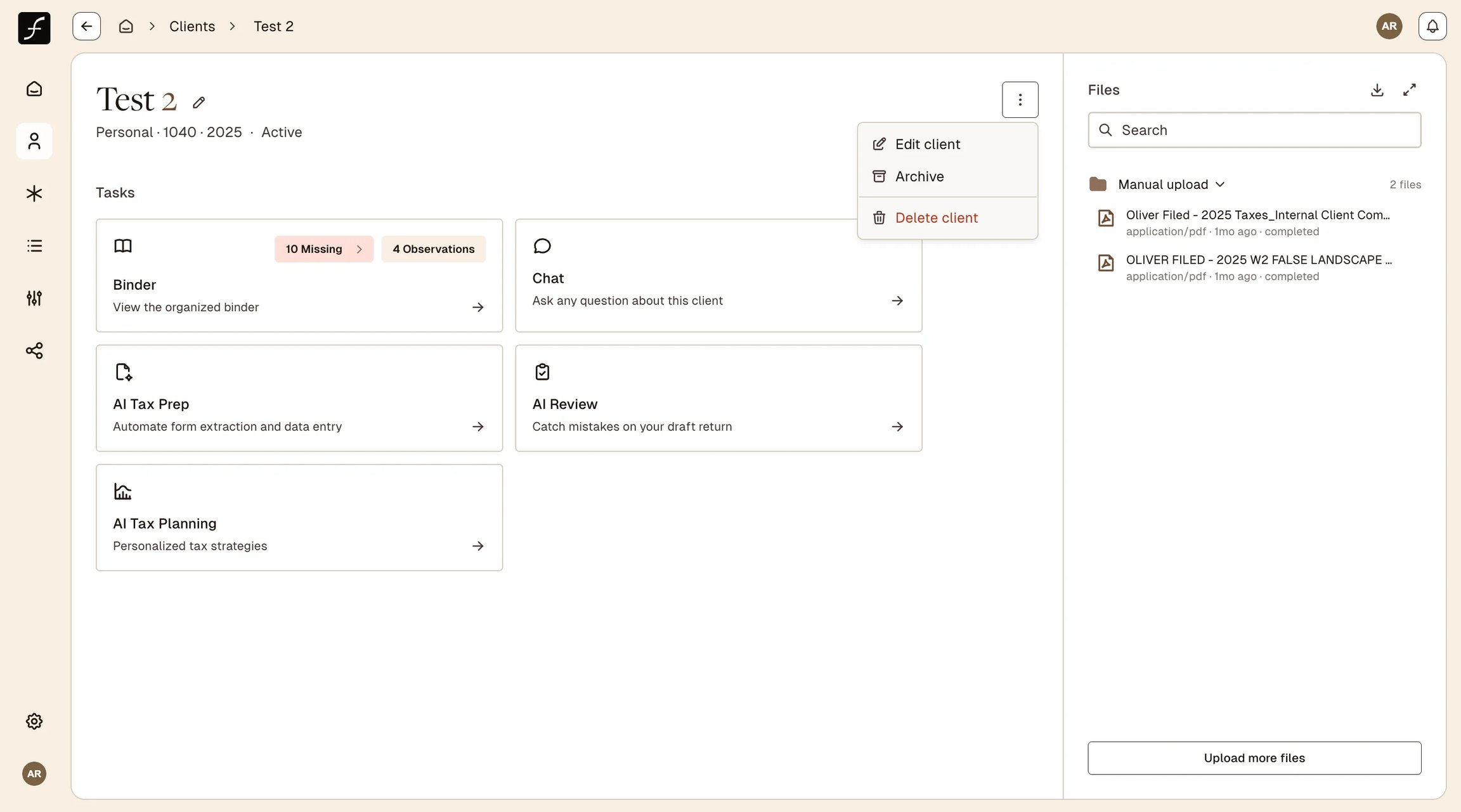
Edit client opens a dialog where the Name field is editable and the Return type is greyed out (it cannot be changed after creation). Click Save to apply, or Cancel to close.
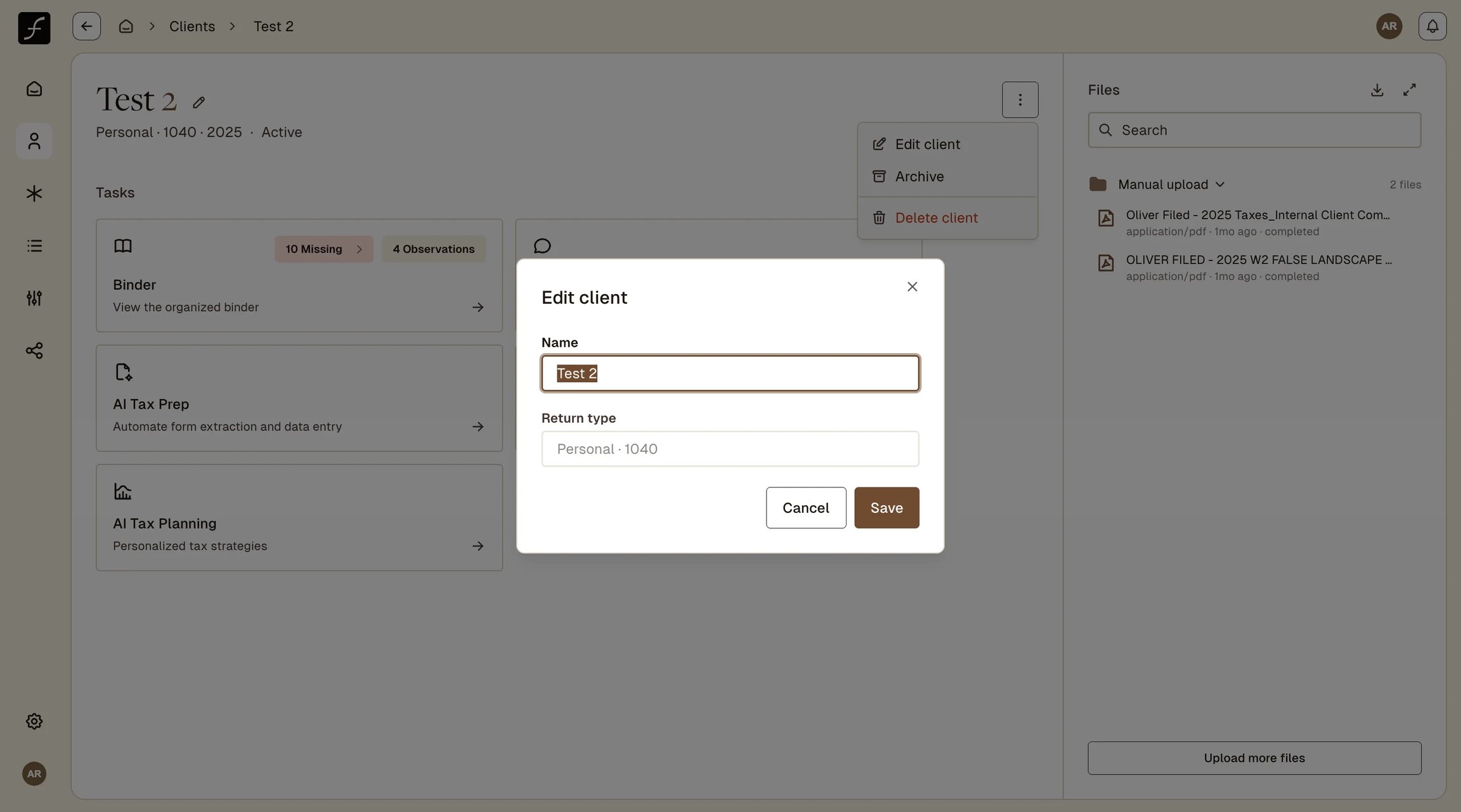
Archive opens a confirmation explaining the client will be hidden from the active list and can be unarchived later.
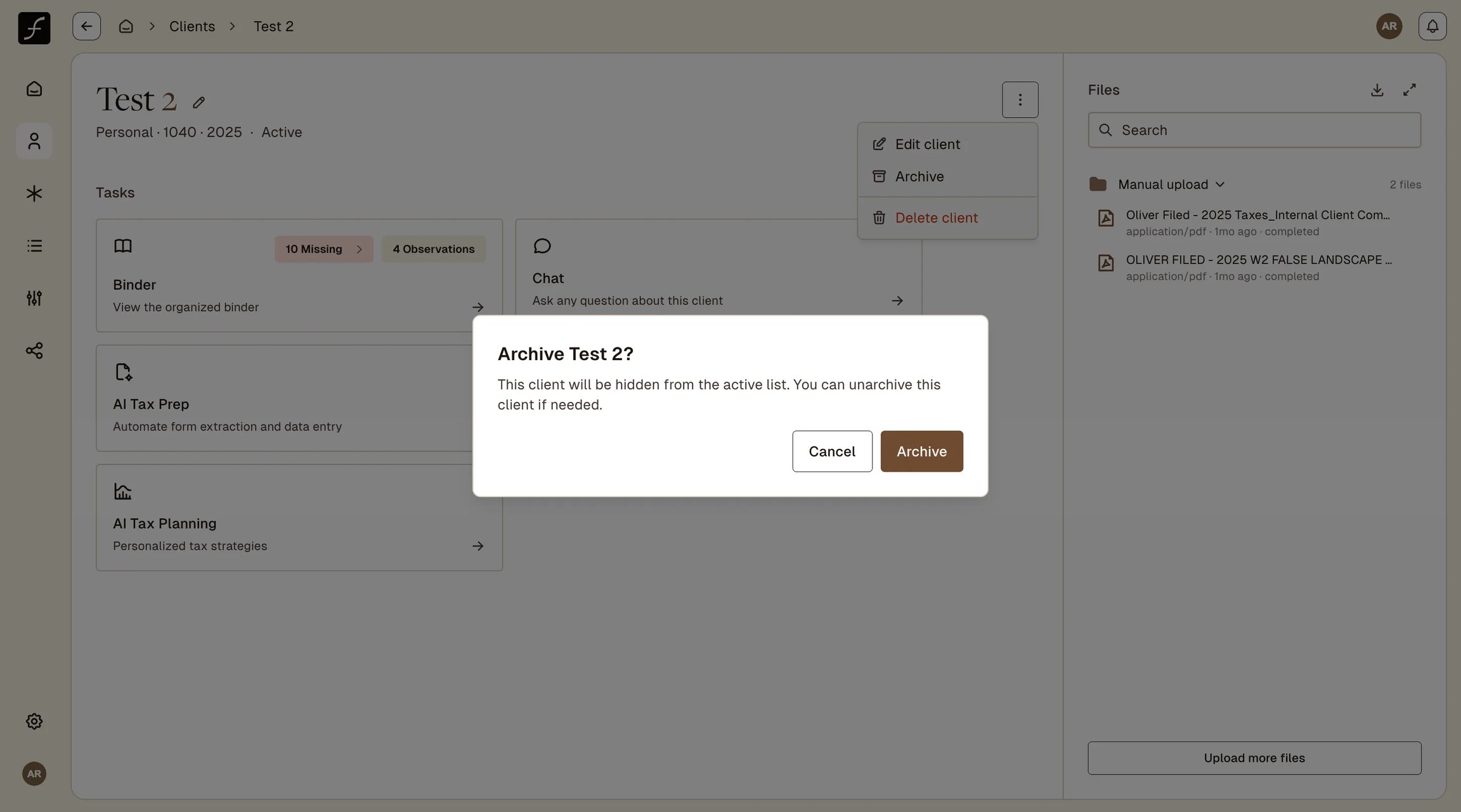
Delete client opens a confirmation that warns the client and all of their data will be permanently deleted and the action cannot be undone.
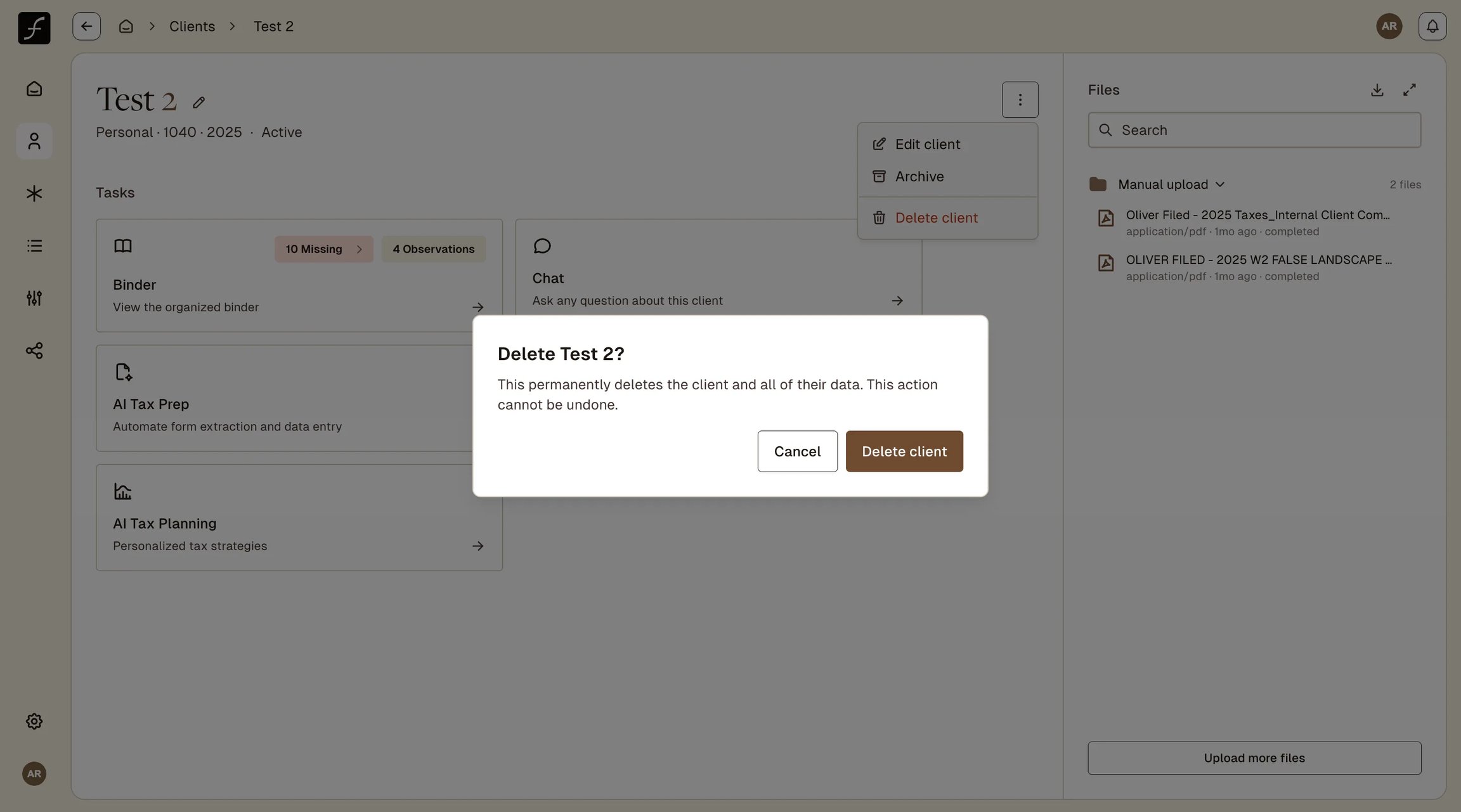
Navigating between clients
To return to the full client list, use the Clients link in the left navigation or your browser's back button. Each client hub has a unique URL scoped to that client's ID, which you can bookmark or share with a colleague who has access to the workspace.
Last updated
Was this helpful?