

Managing files
The Files panel is where you upload and review source documents for a client. Files uploaded here drive the Binder, AI Tax Prep, and all other AI tools in the client hub.
The files panel
On desktop, the Files panel appears as a right sidebar within the client hub. On mobile, the Files button in the client header opens it as a full-screen dialog. Both views show the same content and controls.
How files are organized
Files are grouped by their source, called a document provider. Each provider appears as a collapsible folder labeled with the source name and a file count. "Manual upload" holds files you upload directly in Filed. If your workspace is connected to a document management system, files synced from that integration appear in their own labeled folder alongside manual uploads.
Uploading files
The Upload more files button at the bottom of the panel opens an upload sheet where you can add documents for this client.
Tip: There isn't a limit to how many pages you can upload at once, but we recommend less than 500 pages.
Walkthrough: upload more files to a client
At the bottom of the Files panel, click Upload more files. The Upload more sheet opens, asking where to bring documents in from. Choose File upload. (If your workspace is connected to a document management system, that integration is also listed here as a source.)
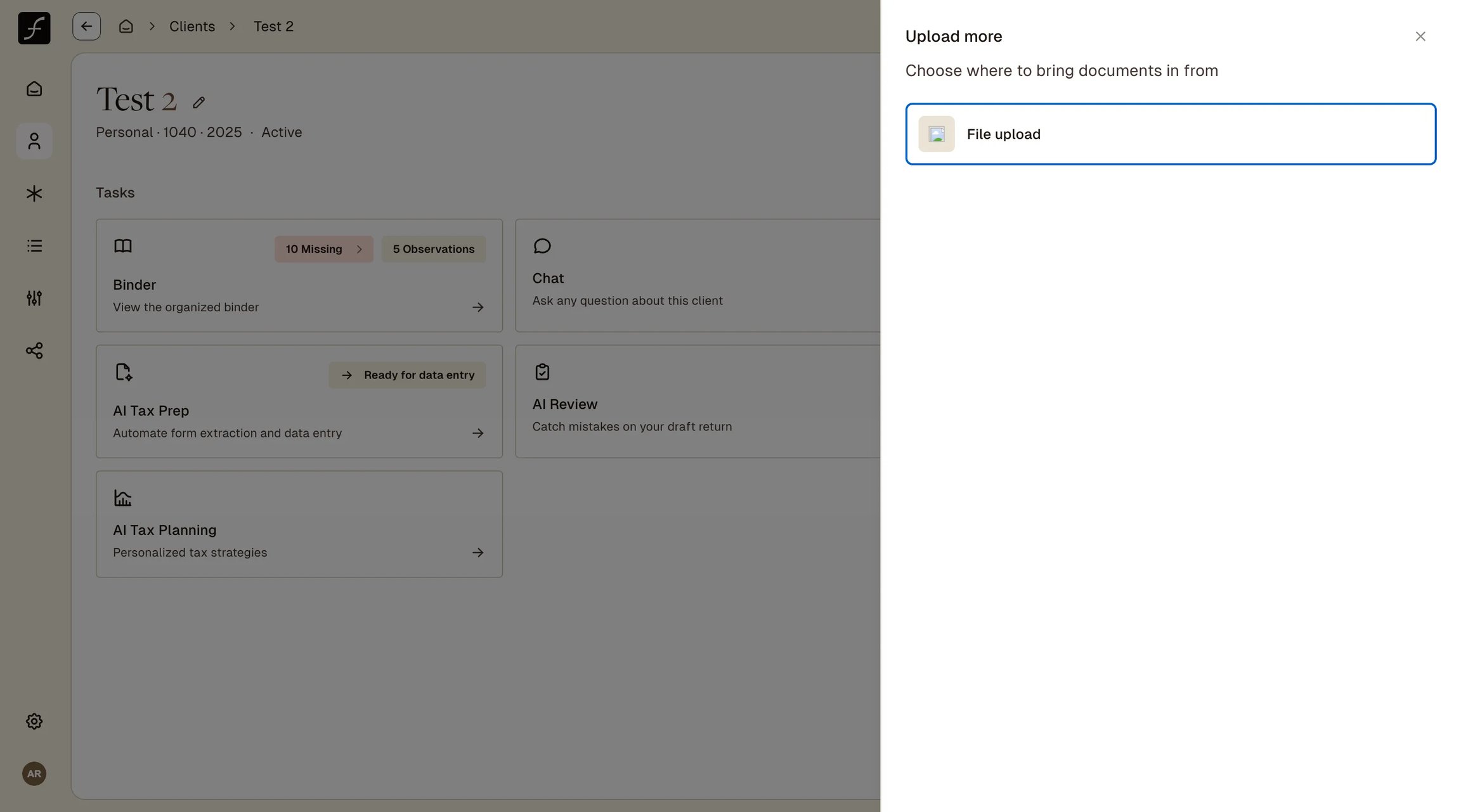
Select files with the file picker or drag them onto the drop zone. You can add multiple files at once, and ZIP archives are expanded automatically - each file inside is uploaded individually (see Supported file types).
Each new file enters the processing pipeline with a running status and moves to completed when it has been added to the binder. While files are processing, the client's status reflects the work in progress and returns to Active once binder creation finishes; the Binder card badge then shows "0 Missing" if every file was extracted successfully.
Auto-sync from a storage folder
If the client is linked to a folder in SmartVault, Google Drive, SharePoint, OneDrive, Box, or Dropbox, Filed can bring in new files from that folder automatically.
Each storage group in the file list shows its sync status on the right. Select it to open the sync panel.
Auto-sync
Turns syncing on or off for the linked folder
Check now
Checks the folder straight away
Change folder
Links a different folder; the old one stops syncing
Choose a folder
Links a folder when the client has none yet
Filed checks linked folders three times a day and brings in files added since auto-sync was switched on, including files in subfolders. Files that were already in the folder when you switched it on are not brought in; add those with Add more files.
Synced 2 min ago
Auto-sync is on; the folder was last checked then
Nothing
Syncing…
A check is running
Nothing
Auto-sync off
A folder is linked but not syncing
Turn on Auto-sync if you want new files
Auto-sync stopped
The folder could not be read several times in a row
Turn Auto-sync on again to retry
Disconnected
The connection needs reconnecting
Reconnect it in Plugins
2 not added
Some files would not download; the panel names them
Check the files in the storage provider
Files on hold
Before a file is added to the Binder, Filed checks that it belongs to the client's tax year. A file that is clearly for a different tax year is put On hold and is not processed. This applies to files you upload and to files a folder brings in.
The prior-year tax return is not held: Filed uses it for the year-over-year comparison.
A file that states no tax year is not held.
A held file stays in the file list with an On hold badge, and the Documents status reads, for example, "1 on hold".
To process a held file anyway, select its On hold badge and choose Process document. The confirmation says why it was held.
Searching within files
A search input at the top of the file list filters rows in real time as you type. It appears only when the panel contains at least one file. If nothing matches, the panel shows a "No files match" empty state.
Viewing file details
Each file row displays:
A file-type icon indicating the format.
The filename.
A meta line showing the MIME type, how long ago the file was uploaded (for example, "2 hours ago"), and the file's current processing status.
File-level processing statuses are running, completed, failed, and on hold.
Downloading files
The Files panel header contains a download icon. Clicking it downloads all files for this client.
Expanding the files panel
An expand icon in the Files panel header opens a larger view of the file list, giving more room to browse or search when a client has many documents.
File processing states
After upload, each file passes through a processing pipeline and ends in one of these states:
running
The file is currently being added to the binder and analyzed
completed
The file was processed successfully; its data is available in the Binder
failed
The file could not be processed
on hold
The file is not for the client's tax year; see Files on hold
The aggregate result appears in the Binder card badge on the client hub: "0 Missing" if all files complete successfully, or "N Missing" where N is the count of files that could not be extracted. For the client-level status these results affect, see Client Statuses.
Supported file types
Filed accepts the following file types for source document uploads:
Best practices:
Include internal context, handwritten notes, organizers, workpapers, and more.
Filed cannot read password protected files
Strongly recommend including prior year tax return in order to Filed to generate a year-over-year comparison (in lead sheets) and a list of missing documents.
PNG image
.png
JPEG image
.jpg, .jpeg
CSV spreadsheet
.csv
Excel workbook
.xlsx
Word document
.docx
ZIP archive
.zip
ZIP files are automatically extracted on upload: each file inside the archive is unpacked and uploaded individually. Nested files within a ZIP are expanded the same way.
Draft return uploads (AI Review) and prior-year return uploads (AI Tax Planning) accept PDF only.
Troubleshooting failed files
A file with a "failed" status could not be processed by Filed's binder creation pipeline. Common causes are corrupted files, password-protected PDFs, or files whose extension matches an accepted format but whose internal content does not.
To recover, confirm the file opens correctly on your computer (and, for PDFs, that it is not password protected), then re-upload it. If the problem persists, contact support with the filename and client name.
A failed file affects the Binder card badge (showing "N Missing") but does not stop you working with successfully processed files. If the client itself shows a "Failed" status badge, see Client Statuses for what triggered that state.
Last updated
Was this helpful?